
Before you begin
You need your Telegram account and the private @vequrbot chat. Use the same account on each device.
Login codes arrive in Telegram, not by SMS. Phone sign-in is available when the number is already verified in Vequr.
Step-by-step guide
Start the bot
Open @vequrbot and tap Start if you have not used it before. Use your own Telegram account.
Open Vequr inside Telegram
Tap the app launch button in the chat or bot menu. If Vequr recognizes your account, it opens your workspace. No separate password is needed.
For browser access, open app.vequr.com/login
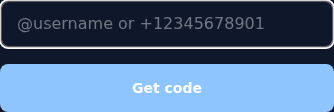
Enter your Telegram username, ID or an already verified phone number. A username looks like @username; it is not your display name.
Request and enter the code
Tap Get code, check the bot chat and return to the form. Enter the current code before the displayed timer expires. Do not share it.
Check your workspace
Check your name and available sections. Clients can use My appointments; business owners can continue to business setup.
Check the result
You are signed in. Installing Vequr and verifying your phone are separate next steps.
Questions and solutions
I do not know my Telegram ID
Send /id to the bot. Use the returned ID in the sign-in form if you have no username.
The code does not arrive
Check that the bot is started and unblocked and that the username or ID belongs to the account you are checking. Request a new code after correcting it.
The code expired
Return to the code request step. Request and use the most recent code.
I cannot see my business
Check that you used the Telegram account that created it. Then check the selected business in your workspace.