
Before you begin
You need a business and specialist. Configure each specialist’s hours separately.
The standard schedule defines the week; the flexible schedule defines date exceptions. Check the actual visit date.
Step-by-step guide
Choose the specialist
Open Schedule and choose a specialist. Their hours may open directly if there is only one.
Set the regular week
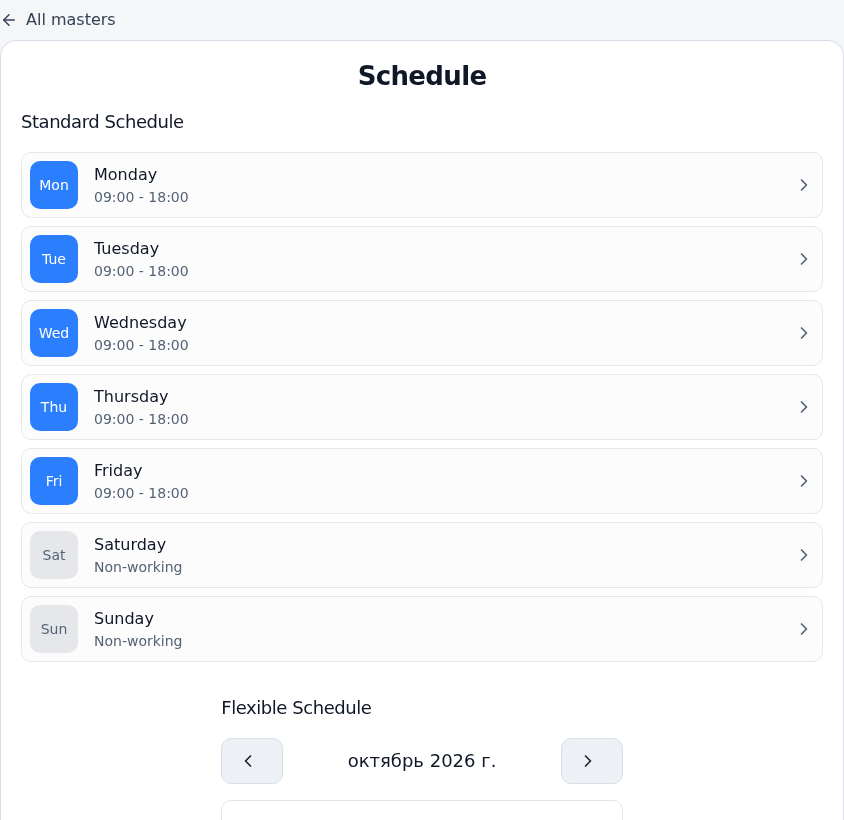
In Standard schedule, select a day, make it a working day and set opening and closing times. Leave other days off.
Add breaks
Add periods without appointments. Each break must start before it ends and fall within working hours.
Save changes
Use the save action and wait for confirmation before leaving.
Add date exceptions
In Flexible schedule, select dates. Mark them off or set special hours. Use the standard schedule for normal days.
Check client time slots
Open the public link and select the specialist, service and changed date. Times must account for breaks and the entire service duration.
Check the result
Hours are saved and clients are offered suitable time slots.
Questions and solutions
I need to close just one day
Use a date exception. Editing the regular week affects other matching weekdays.
The last start is earlier than closing
The whole service must finish during working hours. A 90-minute service cannot start at 17:00 when you close at 18:00.
A visit is outside the new hours
Do not treat a schedule change as rescheduling existing visits. Review them separately and agree changes with clients.
New times did not appear
Check the specialist, date exceptions, breaks, occupied periods and rules including booking window and minimum lead time.