
Before you begin
Create specialists, add services with prices and durations, and save working hours.
Clients need the public booking link, not a workspace address. Test it separately from owner access.
Step-by-step guide
Open the public link section
Expand the public link in your business card. Create one if needed with a recognizable name.
Check form settings
Save the address. Review client name settings and the Telegram booking option there if you want to offer it.
Set booking rules
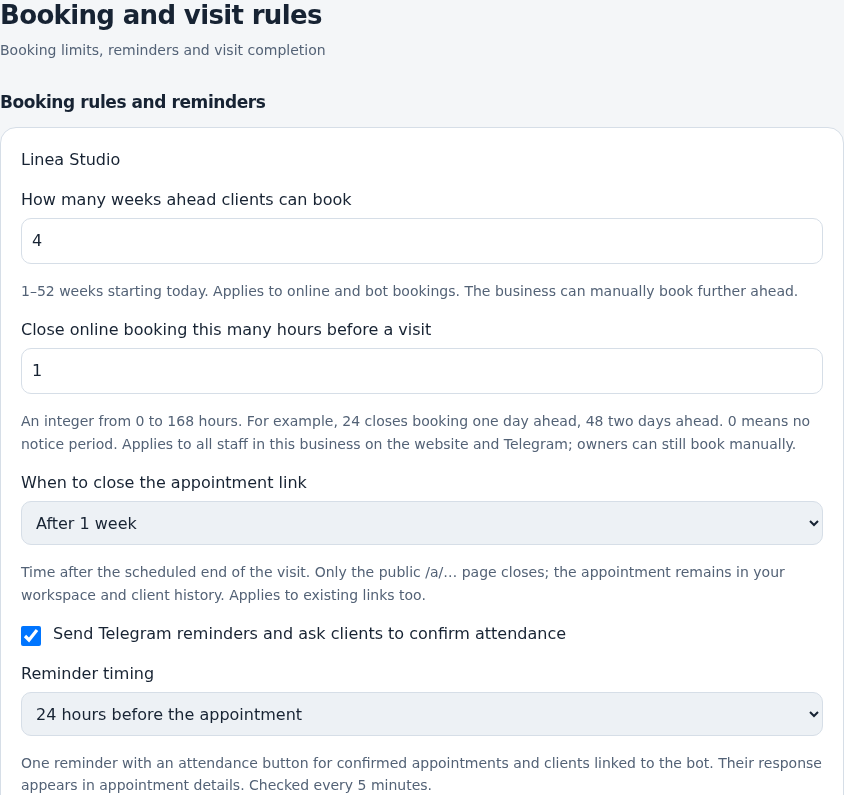
Go to Settings → Booking and visit rules. Choose the advance booking window in weeks and minimum lead time in hours. Save.
Review appointment link access
Rules also control access duration for an individual visit’s public link. Keep this in mind when explaining how clients return to details.
Walk through booking
Open the copied link in a private window. Check contacts, specialist, services and times. Confirming the form creates an appointment, so use test data.
Share the address
Place the checked link in your profile, chat or website. Update shared links when changing the address.
Check the result
Clients can choose times on your public page within your booking rules.
Questions and solutions
The link name is taken
Choose another name or a suggested alternative. Copy the saved address.
Clients can book tomorrow but not today
Check minimum lead time and whether enough uninterrupted working time remains.
Do clients have to install Vequr?
The public form works in a browser. Installation separately provides an app icon and push.
How do I enable the waitlist?
Enable it in booking rules and save. A separate guide covers requests.