
Before you begin
Sign in. On iPhone / iPad, install Vequr on the Home Screen and launch its icon; push requires system version 16.4 or later.
Phone permission, the Vequr push subscription and business event preferences are separate settings. Telegram bot messages use another channel.
Step-by-step guide
Open Notifications
Go to Settings → Notifications. On iPhone, use Vequr launched from the Home Screen.
Connect push
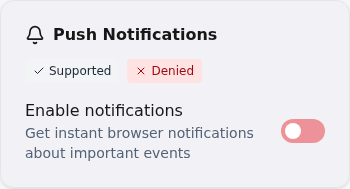
Turn on the switch in Push notifications. Allow the system prompt and wait for a successful subscription message.
Select business events
Choose new bookings, waitlist requests, cancellations and reschedules in Business push notifications. Save.
Check Telegram
Keep @vequrbot unblocked and unmuted, and allow Telegram notifications on the phone. Important bot messages do not depend on web push.
Set reminders
Enable a reminder and select its lead time in Booking and visit rules. Save. Delivery depends on the client’s connected channel, so test it with a demonstration appointment.
Repeat on other devices
Push subscriptions belong to a particular browser or installed app. Connect every device where you need them.
Check the result
The app confirmed your subscription and required events and permissions are enabled. Test actual delivery with a test event.
Questions and solutions
Granted permission, but the switch is off
System permission exists, but you still need to turn on the Vequr subscription.
Permission says Denied
Allow notifications in device settings or browser site settings, then enable the subscription again.
Unsupported on iPhone
Open Vequr from its Home Screen icon and check iOS. A regular Safari tab does not replace the installed app for push.
Notifications are silent or hidden
Check Focus / Do Not Disturb, sound and display settings. On Android, review background restrictions. For Telegram, check chat mute settings.