
Before you begin
Set up online booking. Enable the waitlist in booking rules.
A waitlist request is not a visit. An offered time also needs to be distinguished from a created appointment.
Step-by-step guide
Enable the feature
In Settings → Booking and visit rules, enable the waitlist for the business and save.
Check the client journey
Open public booking and the waitlist form when offered. Clients specify services and preferred dates and hours.
Open requests
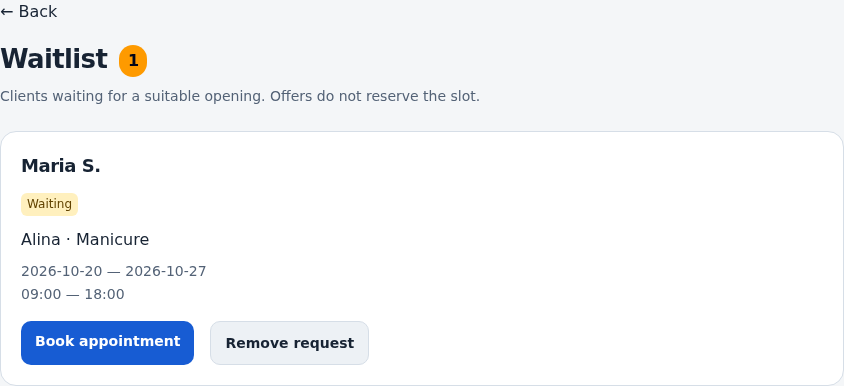
Use the waitlist link in the workspace or business. Check client, specialist, services and preferences.
Review status
Distinguish waiting from an offer and check the last offered time if shown. Contact the client when needed.
Assign an appointment
Use the assign action, review the populated form and save the visit. Opening the form alone does not create it.
Remove outdated requests
Remove only requests that are no longer needed. Check the client before confirming.
Check the result
You can distinguish a request from a visit and create a suitable appointment.
Questions and solutions
The list is empty
Check business and feature settings. Enabling the feature does not create requests.
An offer exists. Is the client booked?
Check the calendar. A time offer is not the same as a created visit.
How do I receive request notifications?
Connect push and enable new waitlist requests in business notifications.