
Before you begin
You need a business with contacts and prices. Define ordinary conditions before adding group exceptions.
Groups belong to a business. Manual assignment takes priority over automatic rules. A configured group price replaces the general service price.
Step-by-step guide
Enable groups
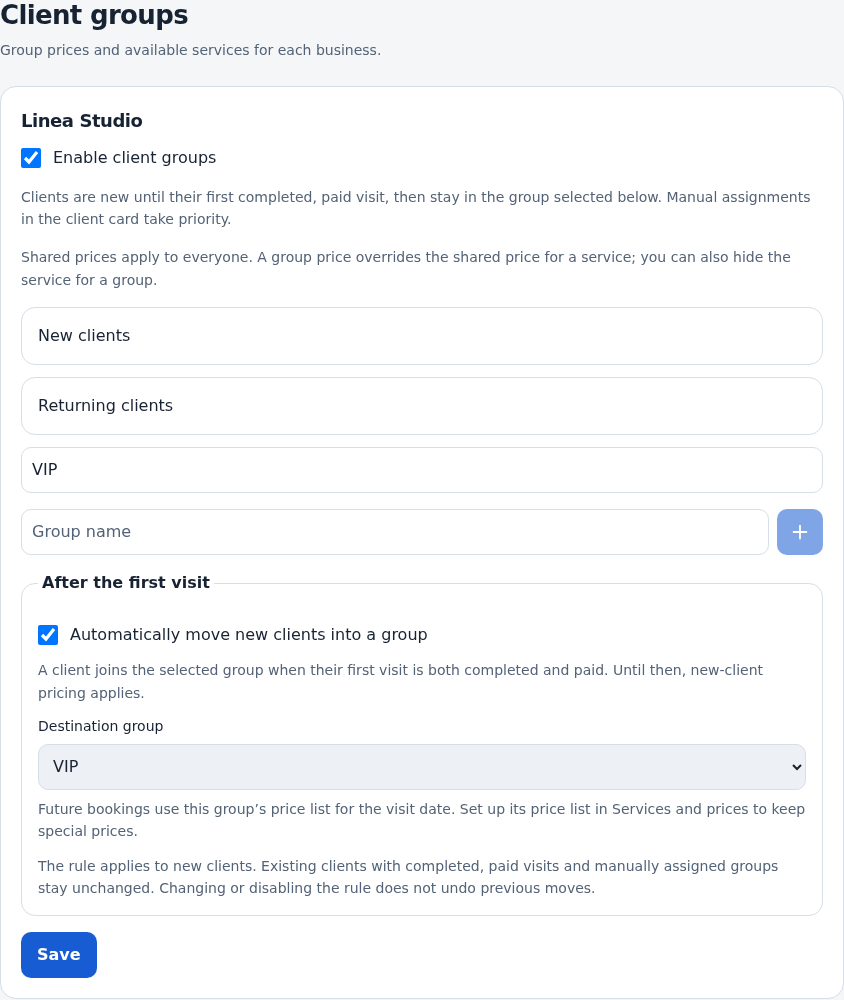
Open Settings → Client groups and enable them for the business. Read the explanation of automatic new and returning client categories.
Add custom groups
Enter a name and select plus. Automatic category names are not editable like custom names. Save.
Assign a client
Open the contact card, choose a group and save. Choose automatic assignment when needed; its effective group is displayed alongside.
Configure prices and access
In the specialist’s price lists, choose the group. Inherit general prices, set custom amounts or hide a service. Save the appropriate effective date.
Optionally enable the transition rule
In group settings, enable enrollment and choose a target group. The rule moves a client after their first visit is both completed and paid. It is not a separate enrollment-link button. Manual assignment still takes priority.
Test both audiences
Use a group member’s number and a regular client in booking. Compare services and final prices for the same date. Check an existing client’s group after rule changes.
Check the result
Groups and conditions are saved and you have checked ordinary clients, special groups and the transition rule.
Questions and solutions
When does a new client become returning?
Without enrollment, automatic classification uses a completed visit. With enrollment enabled, both completion and payment of the first visit matter; read the selected rule’s explanation.
A client did not move to the target group
Check the first visit, payment and manual assignment. Manual groups take priority; the rule is not an unconditional replacement for every assignment.
A service disappeared
Check the effective group and hidden mode in its list for the visit date.
Can VIP clients have another price?
Assign the group in the contact card and set its price in the specialist’s lists. Test booking with the matching phone number.
What if there is no special price?
The general list remains the basis. Check inheritance mode and active group versions.