
Before you begin
The specialist’s base price list must contain services. Set up client groups before using group conditions.
Pricing follows the visit date, not just the booking date. Check general pricing, fixed group prices and original base values separately.
Step-by-step guide
Open the specialist’s Price lists
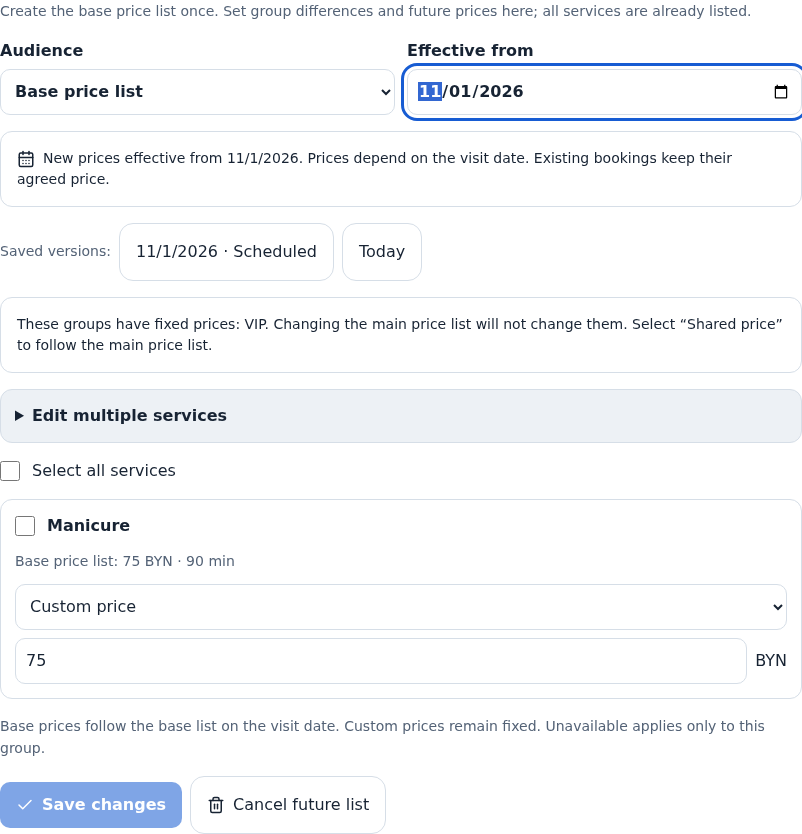
From the specialist card, open Services and prices → Price lists. The base list defines services and original amounts; this tab defines differences.
Choose a list and date
Choose the general list or client group and its effective date. Check whether you are editing current or future prices.
Configure services
General prices can use original or custom amounts. Groups can inherit general pricing, use a custom price or hide a service. Check amounts and currency.
Use bulk changes when needed
Select services, expand bulk actions and choose target lists, increase or decrease, and percent or fixed amount. Applying a bulk action updates the draft; you must save afterward.
Save the version
Save and wait for confirmation. Review every list you changed. Fixed group amounts should not be assumed to follow a new general price.
Test dates before and after
Choose visit dates on either side of the change in client booking. Test a group member and regular client. Review saved amounts separately in existing appointments.
Edit the correct version
Choose its effective date in the version list. Check group, date and confirmation before deleting; an earlier available price list may apply afterward.
Check the result
The version is saved and client booking displays the intended price for the date and group.
Questions and solutions
Why does today’s booking show the new price?
If the visit date falls under the future list, the form uses that date’s pricing.
The group price did not follow the general price
It may be fixed. Inheriting a general price and setting a custom amount behave differently.
The bulk action missed some items
Check selected services and target lists and save the draft. Review amounts before applying an increase again, as it may compound.
Can I hide a service for one group?
Choose the group and hidden mode. Test that group’s booking path and the general list.
I want to reprice existing visits
Saving a price list is not a bulk appointment edit. Review saved amounts in visits before making separate changes.