
Before you begin
Open the appointment in the business owner’s workspace.
Rescheduling changes the existing visit. For a series, choose the scope carefully: this visit or following visits.
Step-by-step guide
Find the visit
Open it from the calendar or list and check client, date, services and status.
Choose Reschedule for a new time
Pending and confirmed visits offer date and time selection. Check the preview and visit end.
Save the reschedule
Select an available time and series scope if asked. Wait for saving and check the date in the card.
Decline a pending request if needed
A pending request offers Decline in its card or list. Select it and confirm cancellation. The current interface shows this action for pending requests.
Check the result
Check the status and calendar. Inform the client; if relying on automatic notification, check that channel is connected.
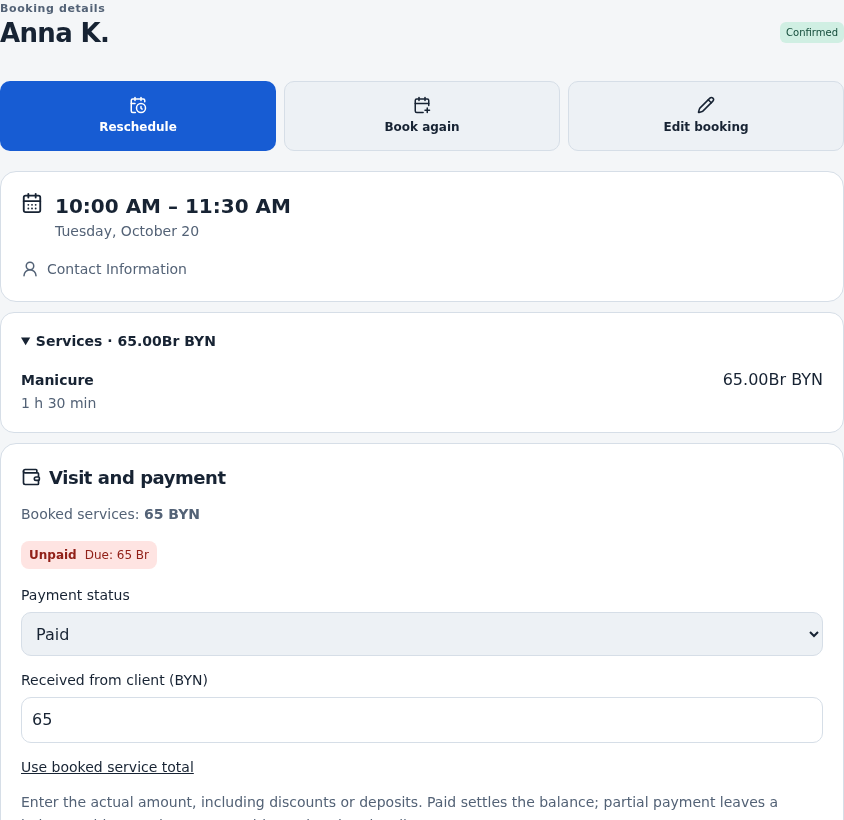
Check the result
The card has a new time, or the pending request was declined. An ordinary reschedule does not need a second booking.
Questions and solutions
No Reschedule button
It is available for pending and confirmed visits. Check status and business access.
I cannot choose a time
The full duration must fit without overlapping visits or blocks. Try another slot.
How do I cancel a confirmed appointment?
The current workspace shows Decline for pending requests. If a confirmed visit has no cancellation action, rescheduling or changing payment does not cancel it. Agree the change with the client first; the visit will remain in the calendar for now.
I need to change services
Use Edit in the card, then review the duration and final details.